
Back to Series Navigation
An Introduction to CSS.
Well, well, well. A web page with just content is boring, who would want that? We’re going to get into how to style your pages to actually look like something that anyone born after 1982 will enjoy.
CSS is how you add styling to your page. HTML is structure, CSS is the way that you display it. How do you do that? Well, you write a selector, followed by rules. The selector encodes what you want your rules to apply to, and the rules encode specific display stuff.
CSS is written like this:
selector {
    rule: value;
}Code language: CSS (css)
The syntax is very important! First your selector, then open braces, then the rule followed by a colon, the value for that rule, a semi-colon, and a closing brace. You may add in as many rule-value pairs as you want for a selector, just make sure to put a semi-colon after each one. Oh, and by the way, you write comments (that means text that won’t be interpreted) like this:
h1 {
    /* This is a comment */
    background-color: white;
    /*
     * Comments can be multi-line!
     */
    color: black;
}Code language: CSS (css)
Comments are written by a slash followed by a star, and ended by a star followed by a slash. Anything in-between isn’t read at all. When spanning multiple lines, it’s common practice to add additional stars for each like to keep the comment nature of the text evident.
And how do you add it to your web page? Well, you have two ways. I’ll mention one, and later I’ll do the other. The first is to just add it to your HTML file. To do so, in the <head> element, add a <style> element. Anything written between the two <style> tags is interpreted as CSS!
Selectors.
Selectors are very important and a lot of people get them wrong. I’ll try to explain them simply. If you understand this, the next part will just be replaceable by a cheat sheet.
A bit of HTML: Element attributes.
I need to take a small HTML break to tell you about attributes. You see, an HTML tag isn’t just it’s name, or at least it doesn’t have to be. It can hold values associated with variable names. I’ll get into other uses in the future, but for now let’s just learn about the simplest of it. For example:
<h1 class="title-class" name="title-name" id="title-id" other="title-other">
    Hello!
</h1>Code language: HTML, XML (xml)
This element is a H1 (header) that has a “class” value of “title-class”, a “name” value of “title-name” etc. Note that you only put the attributes in the opening tag. Attributes can be whatever you want them to be, but there are special attributes that are already used for some things. “class”, “name” and “id” are examples of this. That’s it, that’s all you need to know for now!
The basic selectors
Let’s start with the simplest selectors. Here’s a table for them:
element | Selects every element of type <element> |
.classname | Selects every element of attribute class="classname" |
#idname | Selects every element of attribute id="idname" |
[custom] | Selects every element with an attribute named “custom" |
[custom=value] | Selects every element with an attribute custom="value" |
* | Selects everything |
Though, just those selectors won’t get you very far. They’re not very convenient on their own. This is why we have combinators. Combinators essentially allow you to create complex selectors from simple selectors. Here are the most important combinators:
sel1 sel2 (notice the space) | Selects everything that matches sel2 and is contained in something that matches sel1. It doesn’t need to be a direct child though! |
sel1 > sel2 | Selects everything that matches sel2 and is a DIRECT child of something that matches sel1 |
sel1 + sel2 | Selects the first element that matches sel2 and is a sibling of sel1 |
sel1 ~ sel2 | Selects every element that matches sel2 and is a sibling of sel1 |
sel1, sel2 | Selects everything that matches sel1 OR that matches sel2 |
Finally, you can specify the order of operations, just like in math, by using parenthesis. So you can write something like (sel1 + sel2) > sel3 for example.
Value Types.
(We’re almost there I promise!)
The values that you associate each rule to must be of a certain type. It wouldn’t make sense to set the background color to 12 pixels, would it? CSS has two main value types, colors and lengths. Let’s discuss both!
Colors
Colors exist in three formats. Names, Hex and RGB. Those are three different ways to encode colors, though people familiar with different numerical bases might notice that RGB and Hex really are just two ways to do the exact same thing, though I’ll let proving that be an exercise to the reader 🙂
Names
Colors can simply be encoded through their names. There are a few common colors, though these should be used for quick and dirty experimenting only since they differ based on the browser that you’re using. For example:
h1 { color: blue; }Code language: CSS (css)Hexadecimal (Hex)
Hexadecimal color encoding is a way to describe the three primary colors present in our color, and how much of each there is. It’s written as #RRGGBB, with RR, GG and BB being two-digit hexadecimal numbers. This means that they are each numbers with digit going from 0 to… F! 0 1 2 3 4 5 6 7 8 9 A B C D E F! I know, this is confusing to anyone who has never seen it, but you can just find an RGB color finder online. Just think of it as counting normally, except instead of stopping at 0 and going to 10, you keep going past 9 using letters until you reach F, then you go to 10.
00 means that the color is not present at all, FF that it’s at full brightness. This means that #000000 is black, and #FFFFFF is white. #FF0000 is red, #00FF00 is green, #0000FF is blue! This is the type of color used the most often.
li { color: #FF00FF; }Code language: CSS (css)Bonus points if you can guess what color this will be from the context clues above!
RGB
RGB is essentially identical to hexadecimal, it encodes the exact same value. But it has a different, more palatable syntax for non-developers. It’s written as rgb(r, g, b), with r, g and b being three numbers from 0 to 255 that represent how much of each color is present. This means that rgb(0, 0, 255) is pure green.
p { color: rgb(255, 0, 255); }Code language: CSS (css)You might have guessed so, but this is the same color as the Hex example!
Alpha / Opacity
The RGB and Hex system can have another value added, representing opacity, known as the alpha channel. For Hex, you simply add it as another two-digit number, such as #000000FF. For RGB, you use RGBA notation, such as rgba(0, 0, 255, 255). Color names do not have this feature and need a separate rule to describe their opacity.
We note 255 / FF as something fully opaque (visible) and 0 / 00 as something fully transparent.
Lengths
Lengths are relatively simple, they encode… length! And size. And width. They represent distance. I won’t elaborate too much on each of them, I’ll just give you a table of what each of them are. I’ll use 10 as my number every time, but that’s just a placeholder. Here’s the main big 7:
| 10px | 10 pixels. Note that on small screens like phones, it refers to the size of a “dot”, not of a real pixel. The distinction is complicated, don’t worry about it. |
| 10cm | 10 centimeters, if printed on paper. Rarely used nowadays. |
| 10pt | 10 points. Points are pretty much only used for fonts, as they’re the font size measurement that you’re already used to from office suites for example. |
| 10% | 10% of the available space of the parent element. Can be height or width depending on the context. |
| 10vh | 10% of the height of the screen (the ‘v’ stands for view port). |
| 10vw | 10% of the width of the screen. |
| 10 | Just 10! Usually this is implied to be another unit, most often pixels (and points in the case of fonts). |
Your First Few Rules.
Another table full of rules for you to remember. Value types will be written normally, while specific values will be written in “italics and in quotes”.
| Name | Value Type | Description |
| color | color | The color of the text |
| background-color | color | The color of the background |
| font-size | size | The size of the font |
| font-family | text | The name of the font (“Arial”, “Sans Seriff”…) |
| text-align | “left”, “right”, “center” | Text alignment |
| margin | size | The size of the margin |
| padding | size | The size of the padding |
| border | size | The size of the border |
| width | size | The width of the element |
| height | size | The height of the element |
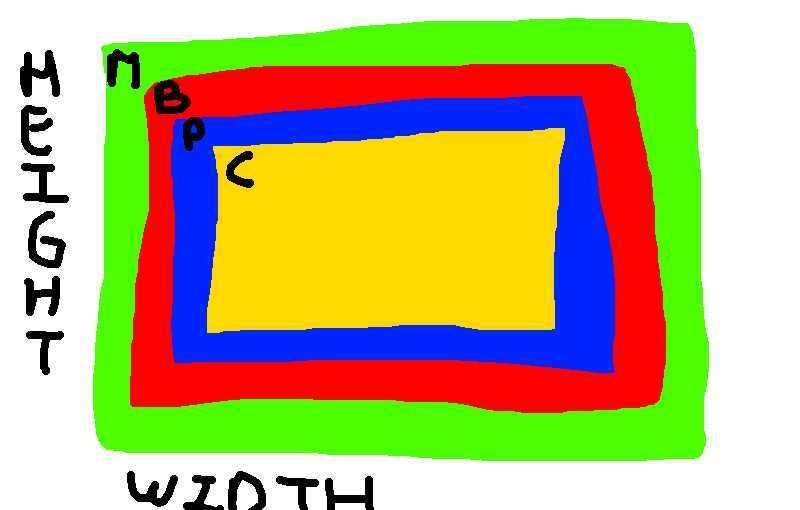
Note: The concept of margin, border, padding and content size can be confusing at first, here’s a handy image to understand:

M / Green is the margin, B / Red is the border, P / Blue is the padding, C / Yellow is the content.
This means that the margin is the size between elements, the border the size of the border around an element and the padding the size between an element and it’s contents. Notably, border colors apply only to the border, and background color to the border, padding and elements, but not the margin!
That Is All For Today!
Yup, that’s it. No examples today. This article was already a lot to write and to read, so I don’t want to overwhelm you with examples. Next chapter will be dedicated to examples though, so stick around for next post if you want examples and exercises! I’ve realized that I didn’t really give any exercises in my previous posts, and those are very important to learn.
For now, I’ll once again shout out W3Schools for the amazing job they’ve done at documenting and giving examples for nearly every CSS and HTML thing out there. Do check them out if you want more and can’t wait for my next posts. Be careful to not get lost in more advanced topis though, such as pseudo-classes and gradient/animation functions, those will be for later 🙂
Have a sweet day friends, I’ll see you next post!